
Snapchat Streak: 3 Easy Ways to Restore a Lost Streak
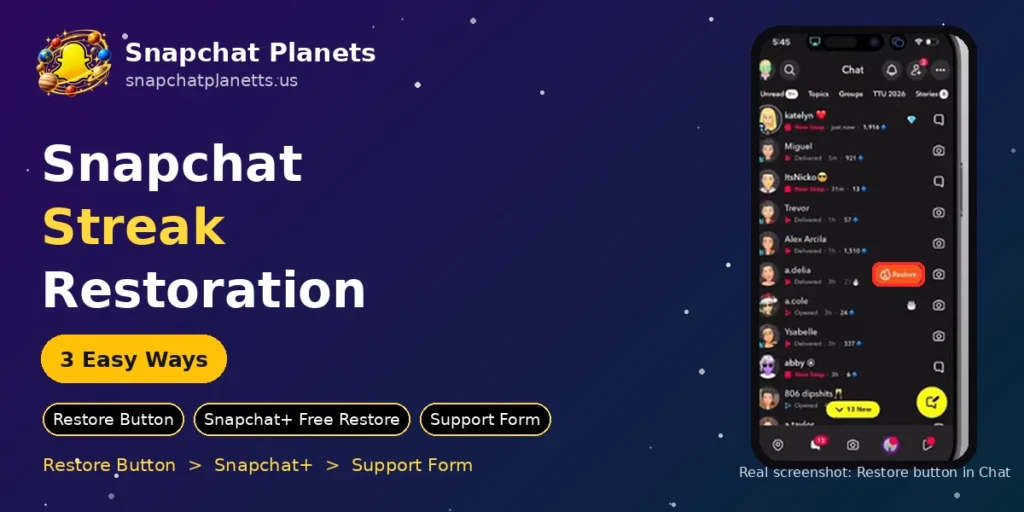
Yes, you can get a lost snapchat streak back, and you can do it in less than a minute when the Restore button is still next to your chat. Every user gets one free restore, Snapchat+ members get one free restore every month, and the support form is there for the day the button is not. But the clock is against you: Snapchat only brings back streaks that ended a short time ago, so every hour you wait can close the door for good. New to streaks and the friend ranks behind them? Our guide to snapchat planets shows how your closest friends sit in order, and this guide shows how to save the streaks you built with them. Your streak is gone. Maybe you forgot one day. Maybe your friend forgot. Now the fire is out, and a streak you built for months or even years has dropped to zero. It feels bad, and you are not alone. Losing a snapchat streak is the most common streak problem on Snapchat, and a lost streak hurts more when the number was big. The good news is that a lost streak is not always dead. Snapchat gives you three ways to bring it back, and the first one takes less than a minute. This guide covers snapchat streak restoration in full: all three ways, what each one costs, and what to do when the normal way fails. The steps are the same on iPhone and Android, except one part that is only on iPhone, and that part is clearly marked. If you are asking how to restore snapchat streak after it ends, start with Way 1 right now, because time is the one thing that can kill your chance. Can a Lost Snapchat Streak Be Restored? The Rules First Not every dead streak can come back. Snapchat restores only recently expired streaks. If your snapchat streak lost its fire a short time ago, you still have a chance. If it ended long ago, no way in this guide can bring it back, and any website that promises that is lying to you. The test is simple. Open the app and look at the chat. If Snapchat still lets you restore that streak, you will see a Restore button or a fire emoji button next to the chat. If the button is not there, the streak ended too long ago. Snapchat never shares an exact number of hours for this restore window, so nobody can tell you a fixed deadline. The rule to remember is short: the sooner you act, the better your chance. One more rule saves a lot of confusion. Restoration works for a group chat streak and for a private chat streak in the same way. And your first restore does not cost money, because every user gets one free Streak Restore. The ways below start with the fastest one. Way 1: Restore in the App With the Restore Button This is the fastest snapchat streak restore method, and for most people it is the only one they need. It works right inside the app. This is the method behind most restore streaks snapchat searches, because it is built into Snapchat itself. Your first restore is free. After you use your one free Streak Restore, the app shows you a price before you pay. That price is not the same in every country, and Snapchat does not publish one fixed price for everyone. So check the price on your screen and decide if the streak is worth it. Once you restore a snap streak, the job is not over. The streak is alive again, but the daily rule starts again at once. You and your friend must both send a snap in the next 24 hours, or the streak dies a second time. Many people lose a restored streak this way, so send a snap right after the restore, not later. Make that snap fun: learn how to make a sticker on snapchat and put your own sticker on it. Restore All: Bring Back Several Streaks at Once Lost more than one streak on the same day? On iPhone, you may not have to fix them one by one. If several of your streaks can be restored, tap Restore next to one chat and choose Restore All. Then tap Restore again and follow the steps, and every expired streak that qualifies comes back together. This is the easy way to restore a snap streak when you lost three or four on the same day. This option is only on iOS right now. On Android, use the normal Restore button for each chat, one at a time. Snapchat does not say how many streaks you can restore at once, so if one streak has no button next to it, that one ended too long ago and stays out. Way 2: Use Your Free Snapchat+ Monthly Restore If you pay for Snapchat+, you get one free Streak Restore every month. This is part of your membership, and it is the best deal for people who lose a snapchat streak more than once. Your month does not start on the first day of the calendar. It starts on your subscription date, the day you joined Snapchat+. If you joined on the 14th, your free restore comes back on the 14th of the next month. And an unused restore does not roll over. If you do not use it in the month, it is gone. Used your free one already and lost another streak in the same month? Then the next restore is paid, and you buy it inside the app at the price your screen shows. Way 3: Fill the Snapchat Support Form Sometimes the button is missing, or the restore inside the app fails. Then your last real option is to ask Snapchat Support with the support form. This is also the route for a snapchat restore streak request when the app gives you nothing. Make your form strong. Write
How to Make a Sticker on Snapchat: 4 Easy Ways
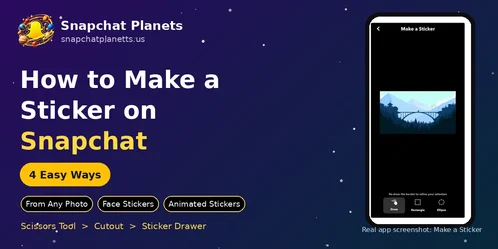
Here is how to make a sticker on snapchat the fast way. Open any photo, tap the Scissors tool, and draw around the part you love. Snapchat cuts it out in one second and saves it to your sticker drawer by itself. That one trick works on a photo Snap, on your Camera Roll, on a Spotlight video, and even on your own video if you have Snapchat+. Your camera roll is hiding your best stickers. That perfect dog photo, your friend’s funniest face, the snack you cannot stop thinking about. Snapchat can cut any of them out and turn them into a sticker that is yours alone. No extra app. No design skill. Just the built in Scissors tool and your finger. If you have been asking how do you create a sticker on snapchat or how to make a sticker for snapchat from your own photos, you are in the right place. Below you get all four working methods, the face sticker trick, the moving sticker trick, and the fixes for the problems that stop most people. Every step works the same on iPhone and Android, and we checked each one on the current Snapchat app in November 2026. New to the app? Start with our guide to snapchat planets, then come back and build your first sticker in the next two minutes. What Is a Custom Sticker on Snapchat? A custom sticker is a piece of your own photo that you can stick on any Snap. Snapchat hands everyone the same built in stickers, the same time and weather stickers, the same location stickers, the same GIFs and Bitmoji. Nobody else on Earth has your custom sticker, because nobody else has your photo. That photo can be your face, your cat mid jump, your breakfast, or the shoes you just bought. Cut it out once and it lives in your sticker drawer forever, under the scissors tab, ready for every Snap and every chat. One minute of work, endless use. Method 1: Make a Sticker From a Photo Snap This is the fastest sticker you will ever make. The thing you want is right in front of you, so shoot it and cut it on the spot. Send the Snap and the sticker still stays yours. It is already sitting in your sticker drawer for tomorrow and for next week. Want neat edges like the pros? Draw slow and stay close to the shape. That is the whole secret of a perfect sticker. And if you want the whole picture as one big sticker, trace around the full photo instead of one corner of it. Let Snapchat Find the Subject Itself Too lazy to draw? Good news. On most clear photos, Snapchat finds the main person or object by itself and offers you the cutout on a plate. One tap and the sticker is done. This is also the real answer to how to make a sticker on snapchat without screenshotting. Screenshots are for other apps. Here the cutout is built in. Method 2: Make a Sticker From a Photo or Camera Roll Your best sticker material is already on your phone. That saved photo of your friend, your pet, your product, your holiday. When people ask how to make a sticker on snapchat from a saved photo, this is the method they are looking for, and it turns any image into a sticker in under a minute. Done. You just learned how to make and save a sticker in one flow, because the drawer keeps it for you. This is also the answer to how to save a sticker on snap. You never press save and pray. The scissors tab is your proof. The Same Sticker From Memories There is a back door to the same sticker, and many people find it faster. Open Memories from the cards icon beside the shutter button, go to your Camera Roll, and open the photo. Tap the three dot menu, tap the Scissors icon, and trace the part you want, or tap the subject when auto detect finds it first. Same sticker, same drawer. Method 3: Make a Sticker From a Spotlight Video Spotlight is a gold mine of sticker faces. A funny reaction, a famous move, a perfect pause. If a frame makes you smile, steal it as a sticker. The sticker comes out as a still picture, sharp and ready. It will not move, even though it was born in a video. For a sticker that actually moves, the next method is yours. Method 4: Make an Animated Sticker From a Video Still stickers are fine. Moving stickers get the replies. An animated sticker is a tiny piece of your video that plays again and again, a bit like a gif, and people also call it a video sticker or a live sticker. Here is how to build one from a video in your Memories or Camera Roll. The Snapchat+ Catch Now the honest part that most guides hide from you. Animated stickers from video are a Snapchat+ feature. No subscription? The app will walk you straight to the Snapchat+ page the moment you pick a video. Do not let that stop you. The first three methods in this guide are free for every single user. No Snapchat+? Make a Still Sticker From One Frame No Snapchat+? You still win. Pause your video on the one frame that says it all, tap the video, and cut a normal still sticker from it. It will not dance, but it costs zero and saves in the same drawer. Which Method Should You Use? Method Sticker source Moves? Cost Photo Snap cutout A photo you take now No Free Photo or Camera Roll A saved photo No Free Spotlight A Spotlight video frame No Free Animated video sticker Your own video, up to 5 seconds Yes Snapchat+ How to Make a Face Sticker on Snapchat Faces get the biggest reactions, so the face sticker is the king of custom
How to Unfriend Someone on Snapchat: 3 Ways & Signs
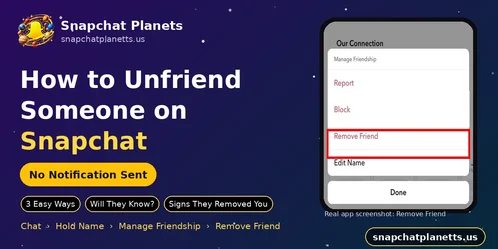
Everyone has that one person on their friends list they no longer talk to. Maybe it is an old classmate, an ex, or someone added by mistake. The good news is that removing them takes less than a minute, and they are not told about it. If you are new to Snapchat features, our guide to snapchat planets shows the fun side of the friends list you are about to clean up. This guide shows you how to unfriend someone on Snapchat in three simple ways. You will also learn the signs that tell you if someone unfriended you, how to remove someone from your Best Friends list, and what happens to your chats and streaks after you remove a person. What Does Unfriend Mean on Snapchat? Unfriending on Snapchat means removing a person from your friends list, and the button for it inside the app is called Remove Friend. People search for this one action with many different words. Some ask how do you unfriend someone on snapchat. Some ask how to delete friends on snapchat or how do you delete contacts on snapchat. Others ask how to delete a contact on snapchat or how to delete someone on snapchat, or type how to unadd someone on snapchat or how to remove friends on snapchat. These are not different features. Every one of them points to the same Remove Friend button inside the Manage Friendship menu, and the result is the same each time. One thing unfriending is not: it is not blocking. A removed friend can still find your username and send you a new friend request. A blocked person cannot do either. Section 5 of this guide puts both options side by side so you can pick the right one. How to Unfriend Someone on Snapchat You can unfriend someone on Snapchat in three ways, and all three end at the same Remove Friend button. The first two ways are the ones Snapchat lists on its own help page, and both start from the Chat screen. The third way starts from your My Friends list, and it is the best option when the person is not in your recent chats. All three take less than a minute, so this is also the answer if you searched how to unfriend someone on snapchat fast. Method 1: Unfriend Someone From the Chat Screen The Chat screen method is Snapchat’s own first method, and it works when you already have a chat with the person. That is all. The person is off your friends list right away, and no message or alert is sent to them. Method 2: Unfriend Someone From Their Profile You can also remove a friend from their profile page, which helps when you want to be sure about the person before you remove them. This is Snapchat’s second official method, and it lands on the same menu as Method 1. Pick this one if you want to see their profile, your friendship details, or your shared Snap Score one last time before you decide. Method 3: Unfriend Someone From My Friends List The My Friends list method is the best choice when you are cleaning up your whole list, because every friend sits in one place. One small tip for a faster clean-up: the three-dot menu on the My Friends screen shows friends you added recently. That list is handy when you added someone by mistake and want to remove them before any chats or streaks start. Can You Unfriend Someone on Snapchat Web or a Computer? No. Removing a friend is an app feature, and Snapchat’s help page only lists steps for the mobile app. Snapchat Web is made for chatting and calling from a browser. It does not have the Manage Friendship menu, so there is no Remove Friend button to tap on a computer. Every search about unadd on snapchat web or removing a friend on a computer ends at the same answer: open the app on your phone and use any of the three methods above. Will They Know If I Unfriend Them on Snapchat? No. Snapchat does not send a notification, a message, or any alert when you remove a friend. This is the part most people worry about, so it is worth saying in plain words. If you unfriend someone on snapchat, will they know right away? No. Nothing pops up on their phone, there is no “you were removed” warning, and your name is not marked in any way on their side. That does not mean they can never work it out. With time, a removed friend may notice that your private Stories no longer show up for them, or that they cannot see things only friends can see. Section 6 of this guide lists the exact signs and those same signs work for you too, when you want to check if someone removed you. What Happens When You Unfriend Someone on Snapchat When you remove a friend, they lose access to your private Stories and your Charms, but they can still see anything you post in public. Snapchat’s help page is clear on this split. Your private Stories are for friends only, so a removed person stops seeing them at once. Your public Stories and Spotlight posts are open to everyone, so those stay visible to them, the same as to any other user who finds your profile. One more effect is easy to miss. Removing a friend also takes them off your Stories screen, just like blocking or muting does. And what they can still do after removal depends on your privacy settings that part is covered next, because it is where most guides get the facts wrong. What Happens to Chats, Snap Score and Streaks? Your old chat with the person does not vanish the moment you remove them, and messages that were saved in the chat stay saved. What changes is what comes next. A removed friend is no longer on your list, so
How to Delete Snapchat Account Permanently: App & Web Steps

So you have decided to leave Snapchat. Maybe you are tired of the app, maybe you made a new account, or maybe you just want your data gone. The good news is that the process is short. The part most people do not know is that the account does not die the moment you press the button. Snapchat first switches it off for 30 days, and the full deletion takes 60 days in total. This guide shows you how to delete snapchat account the right way, step by step. You will learn how to delete account in snapchat from the app and from the website, how to save your photos and data first, and how to get the account back if you change your mind in time. This is the complete guide on how to delete snapchat account, from the first tap to the final day. No shortcuts, no fake tools, only the real method Snapchat itself gives. And if you are not leaving at all and only landed here while exploring the app, our home page guide on snapchat planets is where most of our readers start. How to Delete Snapchat Account Read those five steps once more, because they are the whole job. Everything else in this guide is detail: what to save first, what your friends will see, and what to do if a step fails. One fact saves many people from a big mistake ,deleting the app from your phone does not delete your account. Only the steps above start the deactivation period, and only a login inside the first 30 days can stop it and reactivate your account. Before You Delete: 3 Things to Do First First, save your data. The day your account is deleted for good, everything goes with it your saved photos, your chats, your account history. There is no way to get any of it back after that day. So download your data while the account is still alive. It takes one minute, and the full steps are given later in this guide. If your Memories matter to you, do not skip this. Second, if you pay for Snapchat+, cancel it yourself. A Snapchat+ subscription is billed by the App Store or Google Play, not by the Snapchat account itself. Deleting the account does not stop those payments. Cancel the subscription in your phone’s store settings first, or you may keep paying for an account that no longer exists. None of this takes long, and doing it first makes how to delete snapchat account a clean, one-way trip with nothing left behind. Third, be clear about one simple point. Removing the app from your phone is not the same as deleting the account. When you remove the app, your profile, your friends list and your data all stay active on Snapchat’s side. People can still find you and send you snaps. The account only starts to close when you finish the delete steps below. How to Delete Snapchat Account There are two ways to do this, and both end at the same official page. Use the app if you are logged in on your phone. Use the website if the app is not working or you are on a computer. The result is the same either way. Delete From the App (iPhone and Android) The steps are the same on iPhone and Android. Snapchat’s support page gives one path for both phones, so do not worry if your friend’s screen looks a little different from yours. Open Snapchat and tap your profile icon at the top left. Then tap the gear icon to open Settings. Scroll down until you see the Account Actions section, and tap Delete Account. The app now takes you out of Snapchat and opens the accounts portal in your browser. This surprises many users, but it is normal. Snapchat always confirms a deletion on this portal page, even when you start inside the app. On the portal page, type your username and password and tap Continue. Snapchat may send a verification code to the phone number linked to your account. Type the code, confirm, and you are done. From that second, your account is switched off. You can now remove the app from your phone if you want. Delete From the Website (Accounts Portal) Many people search for delete snapchat website because they want to do this job on a computer, without the app at all. That works fine. Open your browser and go to the official delete page: accounts.snapchat.com/accounts/delete_account. Log in if the page asks you to. Click Delete My Account. The page will ask for your username and password one more time this is Snapchat’s way of making sure it is really you. Type them and click Continue. For some accounts, Snapchat sends a security code to the linked phone. Type the code, submit it, and enter your details again if the page asks. When you see the confirmation message, the switch-off has started. One warning belongs here, and it matters. Only use this official portal page. Never type your Snapchat password into any other website or app that promises to delete your account for you. Such pages are a common trick to steal accounts. Snapchat never asks for your password on any page except its own. Deactivate vs Delete: What Is the Difference? Many users look for a deactivate button inside Snapchat. There is none. On Snapchat, deactivation is not a separate feature it is simply the first stage of deletion. When you deactivate snapchat through the delete steps, your account hides for 30 days. If you log in during those 30 days, the account wakes up again as if nothing happened. If you stay away, deletion moves ahead on its own. So how to deactivate snapchat account and how to delete snapchat account are the same question with two possible endings. The table below makes it plain. Stage What happens Can you undo it? Deactivated (days 1 to 30) Account is hidden.
How to Block Someone on Snapchat (And Know If Someone Blocked You)
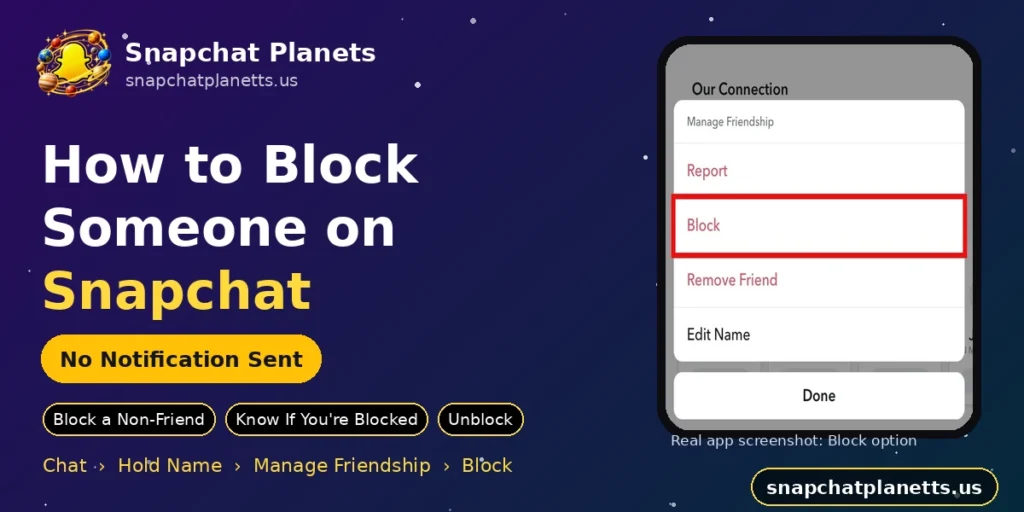
Snapchat makes it easy to share photos, videos, and messages with friends. But sometimes, you may want to stop someone from contacting you. Maybe a person keeps sending unwanted messages, viewing your Stories, or making you feel uncomfortable. In that case, blocking can help protect your privacy. For a clear guide to Snapchat Planets and other Snapchat features, explore our homepage. If you are searching for how to block someone on Snapchat, you can do it in a few simple steps. You do not need to delete your account or change your username. Snapchat also lets you block people who are not on your Friends List. You may also want to know whether someone has blocked you, what happens to old messages, or whether the other person gets a notification. This guide explains the process, the signs to look for, and the privacy options you can use. How to Block Someone on Snapchat You can block someone from the Chat screen or their profile. The labels may look a little different depending on your app version, but the main steps are similar on Android and iPhone. People also search for how to block people on Snapchat, how do you block someone on Snapchat, or how to block a person on Snapchat. These phrases describe the same basic process: open the person’s profile or chat, choose Manage Friendship when available, and select Block. Method 1: Block Someone From the Chat Screen This method works when the person is already in your Chats or Friends List: After blocking, that account cannot contact you through normal private Snaps and Chats. If you do not see Manage Friendship, open the person’s profile and check the menu there. Method 2: Block Someone From Their Profile This is useful when you already have the conversation open and do not want to search through your Friends List. Method 3: How to Block Someone on Snapchat Who Is Not Your Friend You do not have to add someone as a friend before blocking them. This can help if a stranger sends unwanted messages or keeps trying to contact you. If you are looking for how to block on Snapchat when the person is not your friend, use username search and open the correct profile before selecting Block. Check the username before confirming. Different accounts can have similar display names, and you do not want to block the wrong person. Method 4: Block a Public Profile on Snapchat Public Profiles have a separate profile view. Open the Public Profile you want to block, tap the three-dot menu, choose Block, and confirm. Make sure you are viewing the correct profile before taking this step. How to Block Someone on Snapchat Without Them Knowing Many people search for how to block someone on Snapchat without them knowing because they do not want to start an argument. Snapchat does not send a direct notification when you block someone. The person will not receive an alert saying that you blocked their account. A related search is how to block someone on Snapchat that has you blocked. If the person has already blocked your account, you may not be able to open their profile or reach the Block option, so Snapchat may not provide a direct way to block that same account from the unavailable profile. Still, they may notice changes later. They may no longer be able to send you private Snaps or Chats, find your profile in the usual way, or see your Snap Map location. A previous conversation may also stop appearing as it did before. There is no way to guarantee that the person will never work it out. The safest answer is that Snapchat does not notify them, but changes in the app may make them suspect that they have been blocked. How to Know If Someone Blocked You on Snapchat Snapchat does not show a list of people who have blocked you, and it does not send a notification when someone blocks your account. However, a few signs can help you understand what may have happened. You may also see searches such as how to tell if someone has blocked you on Snapchat, how to know if someone blocked me on Snapchat, and how to see if someone blocked you on Snapchat. The checks below can help you look for clues, but none of them is a guaranteed confirmation. 1. Search for Their Snapchat Username Open Snapchat, tap Search, and enter the person’s exact username. If the account does not appear, they may have blocked you. But this is not proof: the person may have deleted or deactivated the account, changed their username, or you may have entered it incorrectly. 2. Check Your Previous Chat Look at your Chat screen and see whether the conversation is still available. If it has disappeared, blocking is one possible reason. A missing conversation alone does not confirm a block because account and chat changes can also affect what you see. 3. Try to Open Their Profile If you can reach their profile from an old message or another place in the app, check whether the profile opens and whether the usual friendship options are available. If you cannot access it, that may be another clue, but it is not conclusive by itself. 4. Ask a Mutual Friend to Check A mutual friend may be able to search for the account from their own Snapchat account. If they can find it while you cannot, that may suggest the person has blocked you. Treat this as a clue, not a guaranteed test, because privacy and account changes can affect visibility. 5. Do Not Rely Only on a Missing Snap Score A missing Snap Score does not automatically mean someone blocked you. Score visibility can depend on your friendship status and other account conditions. Check more than one sign instead of making a decision based on the score alone. The most careful approach is to compare the username search, old conversation, and profile
What Does the Green Dot Mean on Snapchat? (2026 Guide)
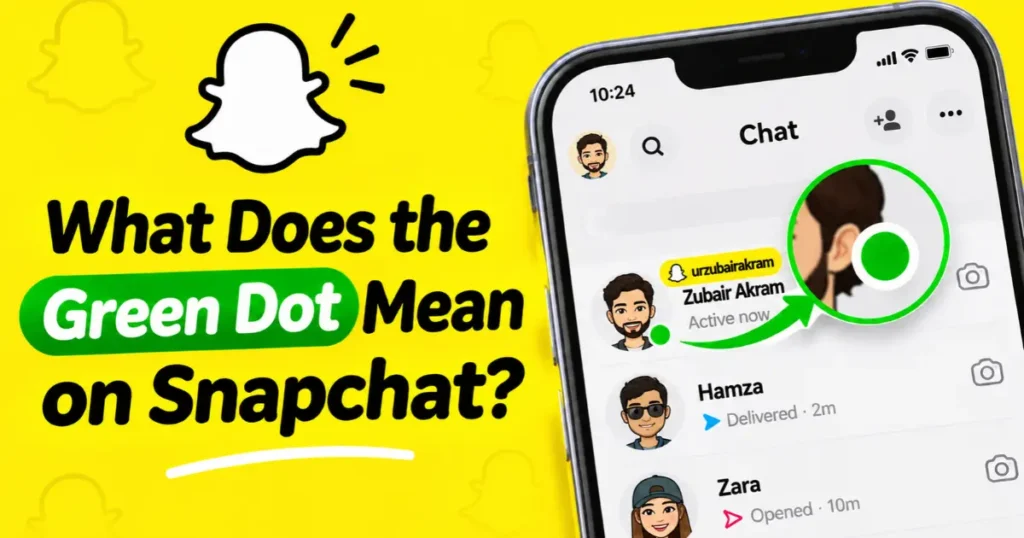
Have you ever opened Snapchat and noticed a small green dot next to someone’s Bitmoji or profile? You may wonder if that person is online, using Snapchat, or checking their messages. So, what does the green dot mean on Snapchat? The green dot is called the Activity Indicator. It tells you that someone has been active on Snapchat recently. However, it does not always mean they are using the app at that exact moment. Snapchat uses this feature to give users a general idea of their friends’ recent activity. You can also turn it off if you do not want others to see your activity status. In this guide, you will learn what the Snapchat green dot means, how long it stays visible, where you can find it, and how to control your privacy. What Does the Green Dot on Snapchat Mean? The green dot on Snapchat means that a person has been active on the app recently. Snapchat calls this feature the Activity Indicator. You may notice this small green circle on a friend’s avatar. It gives you a general sign that the person has used Snapchat recently. However, the green dot does not confirm that someone is currently online. For example, imagine your friend opened Snapchat an hour ago. They checked a few Stories and then closed the app. You might still see the green dot when you check their avatar later. The dot does not tell you exactly when they last opened Snapchat or what they did inside the app. According to Snapchat Support, the green dot appears on a friend’s avatar to show recent activity unless that person disables the Activity Indicator. Does the Green Dot on Snapchat Mean Someone Is Online? No, not necessarily. The Snapchat green dot does not guarantee that someone is online right now. It only shows that Snapchat considers the person recently active. Here is a simple explanation: What You See What It Means Green dot on a friend’s avatar They were active recently Green dot still visible Snapchat is showing their recent activity No green dot Their activity indicator is not visible Green dot after sending a message It does not confirm they read your message For example, you send your friend a message at 10 AM. You notice a green dot on their profile, but they do not reply. This does not mean they have ignored your message. They may have used Snapchat earlier without opening your conversation. Remember, the green dot is an activity signal, not a message-reading notification. Where Does the Green Dot Appear on Snapchat? Snapchat displays the green dot on a friend’s avatar when their Activity Indicator is visible. You may notice it while checking friends’ avatars in the app. The exact placement can depend on the screen and app version. A few things to remember: If you cannot see the green dot, it does not mean there is something wrong with your Snapchat account. How Long Does the Green Dot Stay on Snapchat? One common question is how long does the green dot stay on Snapchat after someone closes the app? Snapchat does not provide an exact time limit for its Activity Indicator. Its official support page only says that the person has been active recently. It does not confirm whether the green dot stays visible for 5 minutes, 30 minutes, or 24 hours. The dot may disappear when Snapchat no longer considers the activity recent. You should also avoid believing websites that promise an exact time without official evidence. The important thing: The green dot is a general recent-activity signal, not an exact last-seen timer. Green Dot vs. Typing Indicator on Snapchat The green dot and typing indicator are two different things. The green dot shows recent activity, while the typing indicator shows when someone is typing in a conversation. Here is the difference: Feature Meaning Green dot Recent Snapchat activity Typing indicator Someone is typing in Chat Opened status A Snap or Chat has been opened Snap Map Shared location information For example, if your friend has a green dot but you do not see a typing indicator, it does not mean they are typing a message. They may be using another part of Snapchat. These features help you understand different types of activity, but none of them should be confused with the green dot. Green Dot vs. Snap Map Status Many Snapchat users confuse the green dot with Snap Map activity. However, these features have different purposes. Green Dot: Shows that someone has been active on Snapchat recently. Snap Map: Shows a friend’s location when they choose to share it with you. Snap Map also has its own privacy option called Ghost Mode. If you turn on Ghost Mode, you can hide your location from other Snapchat users on the map. However, Ghost Mode and Activity Indicator are separate settings. Turning off one does not automatically turn off the other. If you want to protect your privacy, check both settings separately. Does the Green Dot Mean Someone Viewed Your Snapchat Story? No. The green dot does not confirm that someone viewed your Snapchat Story. It only indicates recent activity on Snapchat. For example, someone may have opened Snapchat to check their messages without watching your Story. If you want to know who viewed your Story, open your Story and check its viewer list. Story views and the Activity Indicator are separate features. Is the Green Dot Only Available to Snapchat+ Users? The green dot is Snapchat’s Activity Indicator. Snapchat’s official support instructions explain how users can control it through their privacy settings. The support documentation does not list a Snapchat+ subscription as a requirement for using this feature. Snapchat+ offers other paid features, such as additional customization and exclusive options. However, the green Activity Indicator should not be confused with Snapchat+’s Friend Solar System feature. How to Turn Off the Green Dot on Snapchat If you do not want other people to see your recent activity, you can turn off
Snapchat Profile Viewer: Can You See Who Views Your Profile?
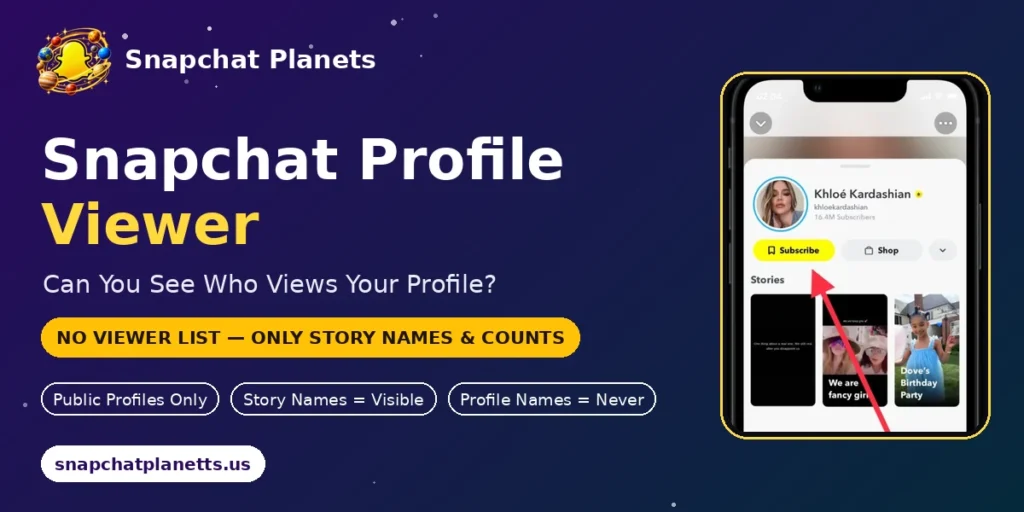
Almost every snapchat profile viewer search starts with one of two needs. Either you want to view a Snapchat profile without the app, or you want to know who is viewing yours. One fact saves you a lot of time before you read further: Snapchat keeps no record of profile visits at all. That single fact is why every site that promises you a list of your profile viewers is selling something that does not exist. Both searches use the same words, but they are not the same job. The tool sites on page 1 only do the first job, and most of them do even that in a thin way. None of them answers the second question properly, even though it is the question in this title. Not one of them tells you what an owner can actually see, and not one of them mentions the single real exception, the Business Profile Views count, which this guide covers in full below. This guide answers both, with the limits stated plainly. Every claim in it is checked against Snapchat’s own Support and Business Help pages, not copied from tool sites. By the end you will know what a viewer can show, what it can never show, what you as an owner can actually see, and how to check your own real numbers inside the app in under a minute. If you came here from our Snapchat Planets in Order guide, this is the other side of a profile: the badges are public, the visits are not. Can You See Who Views Your Public Profile on Snapchat? No. You cannot see who views your public profile on Snapchat. There is no list, no notification, no count of names, and no hidden screen inside the app where profile visitors are stored. This is the exact answer to can you see who views your public profile on snapchat, and it does not change with the type of account you have: People ask the same thing in other words: can you see who viewed your snapchat profile, does snapchat show who viewed your profile, does snapchat have profile views at all. The answer never changes with the wording. Why are people so sure the list must exist? Because a close version of it does exist, one tap away. Your Story viewer list is real. Your Spotlight view count is real. Your subscriber count is real. It is natural to think one of these is quietly logging profile visits too. None of them is. Each one logs content, not page visits. Snapchat draws the line in a simple place. Looking at a page is passive viewing, and passive viewing leaves no record the owner can see. Playing content is active engagement, and active engagement is recorded. Your whole answer sits on that one line, and every section below is just that line applied. What Is a Snapchat Profile Viewer and How Does It Work? A snapchat profile viewer is a website where you type a Snapchat username and it shows you that account’s public profile page, read from the open web. Nothing more. Here is what actually happens when you use one, step by step: A snapchat public profile viewer is simply this same tool used on a public account. The name changes, the data does not. That last point matters. A result that says not found does not mean the account is fake or deleted. It usually means the username belongs to a personal account, or the username was typed wrong, or it was changed. Snapchat usernames can be changed once a year, so an old username can simply stop working. And a subscriber count that says hidden does not mean zero. The owner turned the count off in their settings. The profile is still there. The number is just not public, and no tool can read a number the owner has switched off. Popular Snapchat Profile Viewers Four names come up again and again on this search, and each one does one small job. Here they are with honest one-line facts, so you know what each tool really is before you open it. Notice the pattern. Every honest tool on this list reads the same public page and shows the same small set of fields. The tools differ in design and extra features, not in secret access. When a fifth site promises far more than these four, that promise itself is the warning sign, and the safety section below explains why. What a Profile Viewer Shows, and What It Never Shows Every snapchat profile viewer faces the same limit, and this is where most tool pages get vague, because a short list looks weak next to a long promise. Here is the honest version, in one table. Can a viewer show it? What it is Yes, when public Display name and username Yes, when public Bio and any website link in the bio Yes, when the owner shows it Subscriber count. Large counts are published rounded. A profile shown as 3.59M comes back as a full rounded figure, and the real count sits somewhere near it. Small profiles usually come back exact Sometimes Profile picture, when the public page returns one On story viewer tools Public Stories, saved Highlights, and Spotlight videos that the owner made public No, never Snaps and Stories from a personal account. Those go to friends only No, never Who viewed a profile, yours or anyone else’s No, never Snap Score. A Snap Score is visible only between friends, inside the app No, never Friends list. Only the owner sees their own No, never Private profile content of any kind Read the bottom half again before you trust any tool. If a site claims it can show your Snap Score to strangers, list your friends, open a private profile, or tell you a profile’s last active time or Snap Map location, it is claiming data that the public page does not publish. There is nothing for it to
How to Clear Cache on Snapchat: iPhone Guide (2026)
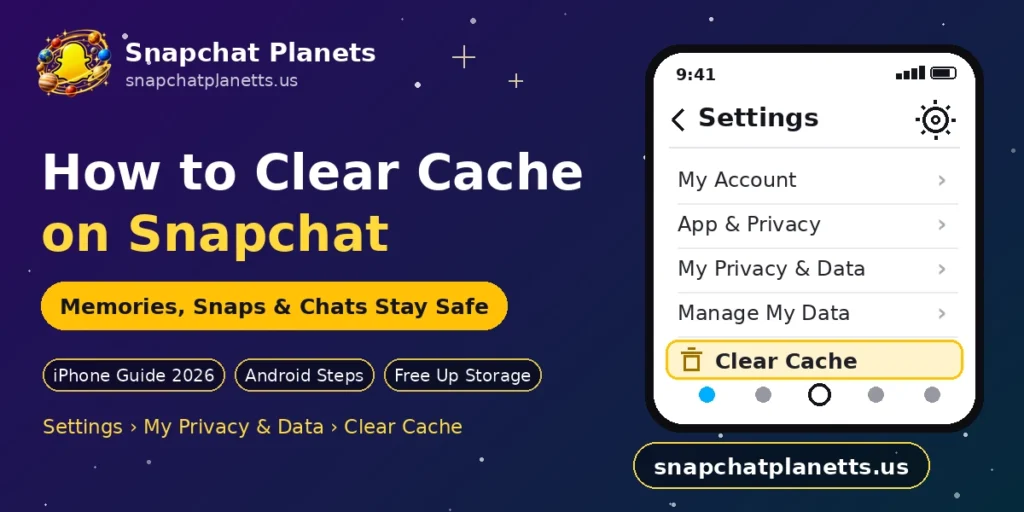
Snapchat can take up a lot of storage on your iPhone over time. You may notice that the app becomes slow, Stories take longer to load, or filters stop working properly. At Snapchat Planets, you can explore helpful guides about Snapchat features and learn how to use the app more effectively. Learning how to clear cache on Snapchat can also help you free up storage and troubleshoot some common app problems. The good news is that Snapchat has a built-in option to remove temporary files. According to Snapchat Support, clearing your cache does not delete your Memories, Snaps, or Chats. In this guide, you will learn how to clear Snapchat cache on iPhone and Android, what happens when you remove temporary files, and what to do if Snapchat still uses too much storage. You will also find solutions to common loading problems and answers to frequently asked questions. How to Clear Cache on Snapchat (Quick Answer) You can clear your Snapchat cache directly from the app’s settings. You do not need to uninstall Snapchat or remove your account. Follow these steps on your iPhone: Snapchat will remove the selected temporary files. Your Memories, saved Snaps, and Chats should remain in your account. Important: Do not confuse the in-app Clear Cache option with deleting Snapchat or clearing all app data through your phone settings. These actions can have different effects. How to Clear Snapchat Cache on iPhone Step by Step If you are searching for how to clear snapchat cache on iphone, the easiest method is to use Snapchat’s built-in cache option. You do not need to delete the application or change your iPhone settings. Just follow the steps below to find the correct option. Step 1: Open Snapchat and Tap Your Profile Open Snapchat on your iPhone. You will usually land on the camera screen. Look for your Bitmoji or Profile icon in the top-left corner and tap it. This opens your profile, where you can find your account details, Stories, and settings. Step 2: Open Snapchat Settings On your profile screen, find the gear icon in the top-right corner. Tap it to open Settings. This section contains controls for your account, privacy, notifications, and app preferences. Step 3: Go to My Privacy & Data Scroll through the settings until you find App & Privacy. Open it, then look for My Privacy & Data. Snapchat places its data-management options in this section. You may need to scroll to find the correct menu. Step 4: Find Manage My Data Inside My Privacy & Data, select Manage My Data. This menu gives you access to different data controls. Make sure you choose the cache option rather than another data-removal option. Step 5: Select Clear Cache Tap Clear Cache. Snapchat may show a confirmation message before removing the temporary files. Read the message and make sure you are selecting the correct option. If your goal is to remove temporary files, you do not need to delete conversations or other account information. Step 6: Confirm and Finish Clearing Cache Confirm your choice when Snapchat asks. The app will then clear the selected cache files. After the process finishes, you can return to Snapchat and use it normally. Some content, such as Lenses, filters, or other app resources, may need to load again the next time you use it. If you are looking for how to clear cache on snapchat iphone, these in-app steps are the first method to try. You can also check your iPhone storage afterward to see whether the amount of space used by Snapchat has changed. What Happens When You Clear Cache on Snapchat? When you clear cache on Snapchat, the app removes temporary files stored on your device. These files help Snapchat load certain content faster when you use the app again. For example, Snapchat may store temporary resources related to Lenses, filters, Stickers, and other visual features. Removing these files can free up some storage, but Snapchat may download or create them again when needed. What Temporary Data Does Snapchat Remove? The cache contains temporary data that helps the app work smoothly. Depending on your app usage, it may include resources connected to: The exact files removed can vary. Snapchat does not provide a complete public list of every temporary file included in each cache-clearing action. If you are wondering how to clear local cache on Snapchat, the built-in Clear Cache option is the place to start. You do not need to search through individual folders on your phone to remove Snapchat’s temporary files. What Happens to Memories, Snaps and Saved Chats? This is one of the biggest concerns for people searching for how to clear the cache on Snapchat. They want to free up storage without losing important photos, videos, or conversations. According to Snapchat Support, clearing the cache does not delete your: Clearing cache is different from deleting your account or removing saved content. However, if you have important Memories that have not finished backing up, check their backup status before making other changes, such as deleting the app. Snapchat data What happens when you clear cache? Memories Not deleted by the cache-clearing option Saved Snaps Not deleted by the cache-clearing option Saved Chats Not deleted by the cache-clearing option Temporary app files Selected cache files are removed Lenses and filters Some resources may need to load again Account and friends Not removed by clearing cache Why Do Lenses and Stories Load Again After Clearing Cache? Snapchat stores some temporary resources to help content open faster. When you clear the cache, the app may need to download certain resources again. That is why a Lens, filter, or other visual feature may take a little longer to load the first time after clearing cache. This is generally expected and does not automatically mean something is wrong with your account. The same idea applies to other apps: temporary files can improve loading speed, but removing them means some resources may need to be loaded again. Why Is Snapchat
What Does the X Mean on Snapchat? Not Friends, Explained
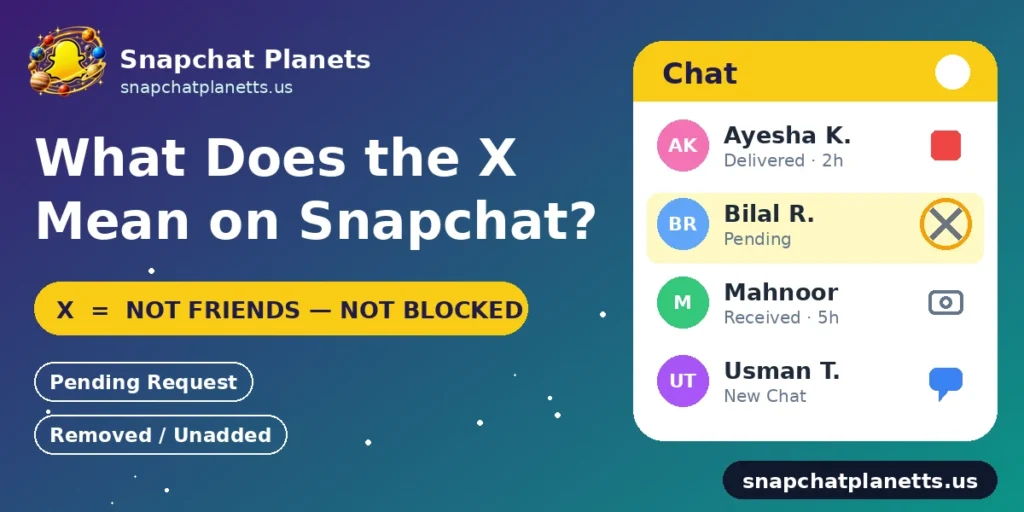
The X next to a name on Snapchat means you are not friends with that person. Removed or Unfriended: they took you off their friends list, or you took them off yours. Pending or Unaccepted Request: a friend request is still waiting, sent by you or sent by them. Limited Communication: your Snaps and chats stay Pending until you are friends again. Press and hold the name and you can clear the chat, add the person back, or block them. And a blocked account does NOT show an X, a block removes the chat and the profile in full. What Does the X Mean on Snapchat? The X on Snapchat means the person is not on your friends list. You two are not mutual friends right now. That is the full meaning of this small X icon. It is a friend status sign, not a warning, not an error, and not a punishment. You may have typed this question in a few ways. Some people search “what does the X on Snapchat mean”, some type “on Snapchat what does the X mean”, and some ask what does the X next to someone on Snapchat mean. All of them are asking about the same grey sign next to a name. The X sits in your chat list, right next to the person’s name, in the place where the camera icon normally sits. Our Snapchat Planets guide explains signs like this every week, and this X mark is the one that worries people the most. The X only shows the state of the friendship right now, nothing more. Why the X Appears Instead of the Camera Icon For a friend, Snapchat shows a camera next to the name, so you can send a Snap in one tap. For someone who is not your friend, there is no need for a fast camera button, so the app shows the X in its place. The official Chat icons guide on Snapchat Support shows a grey pending icon for a person who has not added you back. Support does not give the X its own name on that page, but the rule behind it is the same one: no mutual friendship, no camera. The X is how the chat screen shows that rule. Why Does the X Appear on Snapchat? There are four real reasons for the X, and one of them will match your case. 1. A friend request is pending. They sent you a request and you have not accepted it yet, or you sent one and they have not accepted yours. Until one side accepts, the X stays next to the name. 2. You were removed or unadded. A person who was your friend took you off their list, or you removed them some time ago and forgot. The old camera icon turns into an X the next time the chat list loads. 3. A person who is not your friend sent you a message. This can be a reply to your public Story, or a first message from search or from a group. The chat opens with an X because the sender is not on your friends list yet. 4. The app has not updated the status yet. Some users report seeing the X for a short time right after a friend change, while the app still shows the old status. This one is reported by users, not stated by Snapchat, and it normally clears on its own. The “X but still friends” section below covers it in full. What Does the Little X Mean on Snapchat? Small X, Grey X and Gray X What does the grey X next to someone’s name mean on Snapchat? It means the same thing as every X in your chat list: you are not friends with that person. People in the US type gray X and people in the UK type grey X, but both groups are asking about one and the same sign. The little X and the small X are also the same icon. It only looks small because it sits in a thin row next to a name and a round profile photo. A small size does not give it a second meaning. If the X is next to a name, big or small, grey or gray, it always means one thing: not friends. The colour holds one more clue. Snapchat uses grey for things that are waiting. A grey arrow means a sent Snap is waiting. This grey X means a friendship is waiting, for a request to be accepted or for one side to add the other back. There is no red X and no blue X in the chat list. Where You See the X on Snapchat In Your Chat List The X does not live in one place only, and where you see it changes what it wants from you. Its most common home is the chat list. The X beside a name, the same X by someone’s name that most people ask about, takes the place of the camera and chat icons. It marks a chat with a person who is not your friend. In Added Me and Quick Add Here the X does a different job. In Added Me, it sits with people whose requests are waiting for your answer. In Quick Add, the X is a button: tap it and that suggested friend is removed from your list of suggestions. It says nothing about friendship there. It is only a “no thanks” button. In Search Results and Group Chats If you search a username of a person you never added, you can meet the X in the results too. In a group chat, an X can sit next to a member whose invite is still pending and who has not fully joined the group yet. On Snapchat Web The same rule works on Snapchat Web at web.snapchat.com. If you are not friends with a person, the web version shows the X next to
What Are Snapchat Moons?
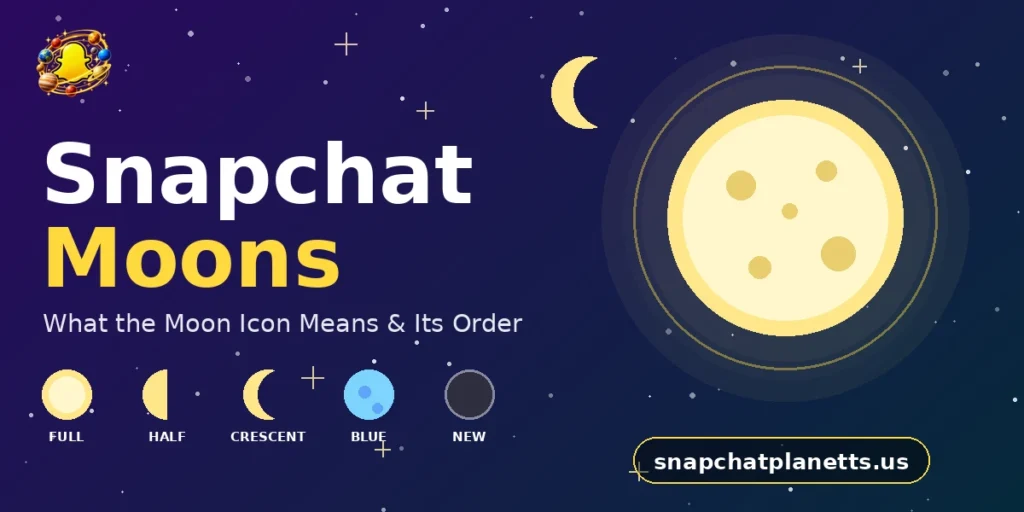
Snapchat moons confuse a lot of people, and there is a simple reason for that. Snapchat has no official feature with the name “moons.” The word “moons” mixes a few different things that all use a moon shape. So the first step is always the same: ask where you saw the moon. A snapchat moon can show up in five places. It can sit next to a chat name. It can sit on the camera screen. It can sit on the Chat page as a picture. It can show up as a face filter. Or it can sit next to Earth in the Planets view. Each place has its own meaning, and none of them mean the same thing. That is why moon snapchat searches give so many mixed answers. The same thing happens with moons snapchat searches: one person sees a moon in a chat, another sees one on the camera, and both want one clear answer. One guide talks about mute settings. Another talks about the camera. A third talks about best friends. All three are right, but each one is talking about a different moon. This guide puts all of them in one place so you do not have to read five guides. Here is the short map. Use it to jump to the part you need. Where you saw the moon What it means Read this part Next to a chat name Do Not Disturb is on for that chat Moon Icon = Do Not Disturb On the camera screen Low-Light mode Moon Icon on the Camera On the Chat page A chat background picture Full Moon on the Chat Page As a face filter A moon lens Part 2: Moon Lenses Next to Earth in Planets You are the 3rd best friend BSF List To learn the full Planets order first, visit Snapchat Planets. The rest of this guide will use plain words only, so an 8th-grade student can follow every step. One more thing to know before we start. Moons on Snapchat are not a rank. A moon does not tell you that you are a good friend or a bad friend. It tells you about a setting, a camera mode, a picture, or a list position. Keep that in mind and the rest will make sense. What Does the Moon Icon Mean on Snapchat? The most common meaning of the moon icon snapchat users see is simple: the chat is muted. When you see a small crescent moon next to a friend’s name in your chat list, it means Do Not Disturb is on for that one chat. You turned the sound off for that chat only. Nothing else changed. The snapchat moon icon does not mean you blocked the person. It does not mean the person blocked you. It does not mean the friendship ended. It only means you will not get alerts from that chat for now. This is the part most guides get wrong, so let us make it clear. What Happens When Do Not Disturb Is On? When Do Not Disturb is on for a chat, three things change. First, you get no pop-ups from that chat. Second, you hear no sounds from it. Third, you feel no vibration alerts from it. Your phone stays quiet when that friend sends a message. But the messages still come in. Snaps and chats still arrive in the normal way, and you can open them and reply at any time. The moon only stops the alerts. It does not stop the messages. That is the whole job of Do Not Disturb. This is useful when you want quiet time. You may be in class, at work, or trying to sleep. You can mute one chat and keep the rest as they are. The moon snapchat meaning here is just “quiet for this chat.” Who Can See the Moon? Only you can see the moon. The other person is not told that you muted the chat. Snapchat does not send them a note, and the moon does not show up on their phone. It is only visible to you, on your own chat list. This is why you should not worry when you see a moon next to your own chats. It means you muted that chat at some point, maybe by mistake. It does not mean your friend did something to you. If you did not mean to mute the chat, you can turn it off in a few taps. Part 2 of this guide shows both ways to do it. One-to-One Chats and Group Chats Do Not Disturb works on one-to-one chats and on group chats. The moon shows up per chat, not for your whole app. You can mute one friend and one group, and all your other chats will still send alerts as normal. A crescent moon snapchat users see is almost always this DND moon. The crescent shape is the sign Snapchat uses for a muted chat. If the moon is next to a name in your chat list, start with this meaning first. It fits most of the time. Snapchat Moon Order: Full, Half, Crescent, Blue, New Moon and Dark Moon The snapchat moon order is the part that causes the most confusion online. Many guides show a table of five moon phases. Each phase is said to mean something about a chat. Here is that table, in the order most guides use it. Moon phase What guides say it means Full Moon The chat is active, and alerts are on Half Moon Chat activity is lower, and alerts are off Crescent Moon Do Not Disturb is on, and the chat is muted Blue Moon Rare, and tied to a special setting or mute New Moon The chat is quiet or the friend is offline Dark Moon A close friend who ranks high in the Friends List Now comes the honest part, and it matters. Snapchat has no official list of moon phases. There is no