
Snapchat can take up a lot of storage on your iPhone over time. You may notice that the app becomes slow, Stories take longer to load, or filters stop working properly. At Snapchat Planets, you can explore helpful guides about Snapchat features and learn how to use the app more effectively. Learning how to clear cache on Snapchat can also help you free up storage and troubleshoot some common app problems.
The good news is that Snapchat has a built-in option to remove temporary files. According to Snapchat Support, clearing your cache does not delete your Memories, Snaps, or Chats.
In this guide, you will learn how to clear Snapchat cache on iPhone and Android, what happens when you remove temporary files, and what to do if Snapchat still uses too much storage. You will also find solutions to common loading problems and answers to frequently asked questions.
How to Clear Cache on Snapchat (Quick Answer)
You can clear your Snapchat cache directly from the app’s settings. You do not need to uninstall Snapchat or remove your account.
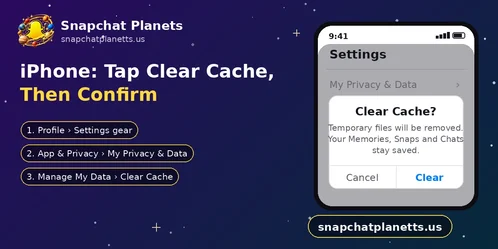
Follow these steps on your iPhone:
- Open Snapchat on your iPhone.
- Tap your Profile or Bitmoji icon.
- Tap the Settings gear.
- Open App & Privacy.
- Select My Privacy & Data.
- Tap Manage My Data.
- Choose Clear Cache.
- Confirm your choice when Snapchat asks.
Snapchat will remove the selected temporary files. Your Memories, saved Snaps, and Chats should remain in your account.

Important: Do not confuse the in-app Clear Cache option with deleting Snapchat or clearing all app data through your phone settings. These actions can have different effects.
How to Clear Snapchat Cache on iPhone Step by Step
If you are searching for how to clear snapchat cache on iphone, the easiest method is to use Snapchat’s built-in cache option.
You do not need to delete the application or change your iPhone settings. Just follow the steps below to find the correct option.

Step 1: Open Snapchat and Tap Your Profile
Open Snapchat on your iPhone. You will usually land on the camera screen.
Look for your Bitmoji or Profile icon in the top-left corner and tap it. This opens your profile, where you can find your account details, Stories, and settings.
Step 2: Open Snapchat Settings
On your profile screen, find the gear icon in the top-right corner. Tap it to open Settings.
This section contains controls for your account, privacy, notifications, and app preferences.
Step 3: Go to My Privacy & Data
Scroll through the settings until you find App & Privacy. Open it, then look for My Privacy & Data.
Snapchat places its data-management options in this section. You may need to scroll to find the correct menu.
Step 4: Find Manage My Data
Inside My Privacy & Data, select Manage My Data.
This menu gives you access to different data controls. Make sure you choose the cache option rather than another data-removal option.
Step 5: Select Clear Cache
Tap Clear Cache. Snapchat may show a confirmation message before removing the temporary files.
Read the message and make sure you are selecting the correct option. If your goal is to remove temporary files, you do not need to delete conversations or other account information.
Step 6: Confirm and Finish Clearing Cache
Confirm your choice when Snapchat asks. The app will then clear the selected cache files.
After the process finishes, you can return to Snapchat and use it normally. Some content, such as Lenses, filters, or other app resources, may need to load again the next time you use it.
If you are looking for how to clear cache on snapchat iphone, these in-app steps are the first method to try. You can also check your iPhone storage afterward to see whether the amount of space used by Snapchat has changed.
What Happens When You Clear Cache on Snapchat?
When you clear cache on Snapchat, the app removes temporary files stored on your device. These files help Snapchat load certain content faster when you use the app again.
For example, Snapchat may store temporary resources related to Lenses, filters, Stickers, and other visual features. Removing these files can free up some storage, but Snapchat may download or create them again when needed.
What Temporary Data Does Snapchat Remove?
The cache contains temporary data that helps the app work smoothly. Depending on your app usage, it may include resources connected to:
- Lenses and filters that you have loaded or used.
- Stickers and visual effects used in Snaps.
- Temporary images and other app resources.
- Some data that helps content load more quickly.
The exact files removed can vary. Snapchat does not provide a complete public list of every temporary file included in each cache-clearing action.
If you are wondering how to clear local cache on Snapchat, the built-in Clear Cache option is the place to start. You do not need to search through individual folders on your phone to remove Snapchat’s temporary files.
What Happens to Memories, Snaps and Saved Chats?
This is one of the biggest concerns for people searching for how to clear the cache on Snapchat. They want to free up storage without losing important photos, videos, or conversations.
According to Snapchat Support, clearing the cache does not delete your:
- Memories saved to your Snapchat account.
- Snaps stored in your account or saved conversations.
- Chats and other saved conversation content.
Clearing cache is different from deleting your account or removing saved content. However, if you have important Memories that have not finished backing up, check their backup status before making other changes, such as deleting the app.
| Snapchat data | What happens when you clear cache? |
|---|---|
| Memories | Not deleted by the cache-clearing option |
| Saved Snaps | Not deleted by the cache-clearing option |
| Saved Chats | Not deleted by the cache-clearing option |
| Temporary app files | Selected cache files are removed |
| Lenses and filters | Some resources may need to load again |
| Account and friends | Not removed by clearing cache |

Why Do Lenses and Stories Load Again After Clearing Cache?
Snapchat stores some temporary resources to help content open faster. When you clear the cache, the app may need to download certain resources again.
That is why a Lens, filter, or other visual feature may take a little longer to load the first time after clearing cache. This is generally expected and does not automatically mean something is wrong with your account.
The same idea applies to other apps: temporary files can improve loading speed, but removing them means some resources may need to be loaded again.
Why Is Snapchat Taking Up So Much Storage on iPhone?
Snapchat storage can grow as you use the app. You may send Snaps, watch Stories, use filters, open Spotlight, and load other content. Some app data is stored temporarily to make these features easier to use.
However, the cache is not the only thing that uses space. The application itself and its other stored data also take up storage.
Snapchat Cache vs App Size vs Documents & Data
When you check your iPhone storage, you may see Snapchat listed with its app size and stored data. These are not exactly the same thing.
- App Size: The space used by the Snapchat application itself.
- Documents & Data: Other information stored by the app, which can include user data and cached files.
- Cache: Temporary files that help the app load content and features.
This difference matters because clearing cache may reduce some stored data, but it does not make the Snapchat application itself smaller.
If you are searching for how to clear app cache on iphone snapchat, remember that the in-app cache option is different from removing the whole application. Start with Snapchat’s own settings before trying more advanced methods.
How to Check Snapchat Storage on iPhone
You can check how much space Snapchat uses through your iPhone settings.
- Open your iPhone’s Settings app.
- Tap General.
- Select iPhone Storage.
- Wait for the storage list to load.
- Find and tap Snapchat.
- Review the app size and its stored data.
This gives you a better idea of how much space Snapchat uses on your device. You can compare the storage before and after clearing the cache to see whether it made a difference.
If you searched for how to clear snapchat cache on iphone settings, this is an important difference: iPhone Storage helps you check the space Snapchat uses, while Snapchat’s own Settings menu provides the built-in cache-clearing option.
Offload App vs Delete and Reinstall Snapchat
If clearing cache does not free enough space, iOS provides two other options: Offload App and Delete App.
They work differently, so do not treat them as the same action.
| Option | What it does | Important detail |
|---|---|---|
| Offload App | Removes the app but keeps its documents and data | You can reinstall the app while retaining its stored data |
| Delete App | Removes the app and its related local data | You may need to sign in again and restore anything not backed up |
Offload App is useful when you want to remove the application itself without removing its stored documents and data. It may not solve a problem caused by those stored files because they are kept.
Delete App removes more from the device. Before using it, make sure you know your Snapchat login details and that important Memories have finished backing up. Do not assume that every locally stored item can be recovered after deleting the app.
For most people, the built-in Clear Cache option is the better first step. Try deleting and reinstalling Snapchat only when simpler fixes do not solve the problem.
How to Clear Snapchat Cache on Android
The steps on Android are slightly different from iPhone. You can clear the cache inside Snapchat or use your phone’s app settings.
If you are searching for how to clear cache on snapchat android, start with Snapchat’s own option. It lets you remove temporary files without using your phone’s Clear Storage option.
Clear Cache Through Snapchat Settings
Follow these steps:
- Open Snapchat on your Android phone.
- Tap your Profile icon.
- Tap the Settings gear.
- Scroll to App & Privacy.
- Open My Privacy & Data.
- Under Manage My Data, tap Clear Data.
- Select Clear Cache.
- Confirm by tapping Clear.
These are the steps listed in Snapchat’s official support instructions. The app may show slightly different labels after an update.
Clear Snapchat Cache Through Android Settings
You can also use your phone’s settings to clear Snapchat’s temporary app files. The exact menu names may differ between Samsung, Google Pixel, Xiaomi, OnePlus, and other Android phones.
Try this general route:
- Open your phone’s Settings.
- Tap Apps or Apps & notifications.
- Find and select Snapchat.
- Open Storage or Storage & cache.
- Tap Clear Cache.

This removes temporary files stored by the app. Some content may take longer to load the next time because Snapchat needs to rebuild or download temporary resources.
Clear Cache vs Clear Data on Android
Be careful when choosing between these two options. They do different things.
| Option | What it does | Should you use it? |
|---|---|---|
| Clear Cache | Removes temporary files | Yes, when you want to clear temporary data |
| Clear Data / Clear Storage | Removes app data stored on the device | Avoid it unless you understand the effects |
If you choose Clear Data or Clear Storage in your Android phone settings, you may remove local app information and need to sign in again. This is not the same as opening Snapchat’s own Clear Data menu and then choosing Clear Cache.
If your goal is to clear all cache on Snapchat, use the built-in cache option. Do not choose your phone’s Clear Storage option unless you understand what it removes.
How to Fix Snapchat Cache and Loading Problems
Clearing cache can help with some storage and app issues, but it cannot fix every Snapchat problem. A weak internet connection, an outdated app, low phone storage, or an account issue may be the real cause.
Use the problem below to find a suitable fix.
Clear Cache Option Is Missing
If you cannot find the Clear Cache option, check that you are looking in the correct settings section.
- Open your Snapchat Profile and tap Settings.
- Look under App & Privacy.
- Open My Privacy & Data.
- Find Manage My Data and check the available options.
On Android, Snapchat may place the option under Clear Data. On iPhone, it may appear directly under Manage My Data. If the labels do not match, update Snapchat and check its official help instructions.
Snapchat Cache Is Not Clearing
If you tap Clear but the app still seems to use the same amount of storage, try these steps:
- Close Snapchat completely.
- Restart your phone.
- Open Snapchat again and check the storage.
- Make sure you have a stable internet connection.
- Check whether Snapchat has an update available.
Also, remember that the cache can start building again as you use the app. A small change in storage does not always mean the process failed.
Snapchat Is Still Slow After Clearing Cache
Clearing cache may help if temporary files are causing a problem. But if Snapchat is still slow, look at other possible causes.
Try these fixes:
- Check your internet connection: Switch between Wi-Fi and mobile data to see whether loading improves.
- Update Snapchat: Install the latest version available from your app store.
- Restart your phone: This can help when the app or device is temporarily unresponsive.
- Check phone storage: Make sure your device has enough free space to run apps properly.
- Check Snapchat’s service status: If several features stop working at once, the issue may not be on your device.
Do not keep clearing the cache again and again if the same issue continues. Find out whether the problem is related to your phone, connection, app version, or Snapchat itself.
Snapchat Stories, Filters or Lenses Are Not Loading
If Snapchat Stories, filters, or Lenses are not loading, first check your internet connection. These features may need to download content while you use the app.
If you also want to learn about viewing Snapchat Stories, explore our guide to the Anonymous Snapchat Story Viewer.
Try the following:
- Switch to a different Wi-Fi or mobile network.
- Close and reopen Snapchat.
- Update the app from the App Store or Google Play Store.
- Clear the Snapchat cache.
- Restart your phone and test the feature again.
If only one Lens or filter fails to load, the problem may be related to that specific feature rather than your entire Snapchat app.
Snapchat Memories Are Missing or Showing Grey Screens
Missing Memories need more care than ordinary loading problems. A grey or empty screen does not always mean that your saved content has been deleted.
Before logging out, switching devices, or uninstalling Snapchat:
- Check whether your Memories have finished backing up.
- Connect to a stable Wi-Fi network if backup is incomplete.
- Update Snapchat to the latest version.
- Clear the cache and restart your phone.
Important: Snapchat warns that it cannot recover Memories that have been permanently lost or deleted. If your Memories are missing, do not uninstall the app or log out until you have checked their backup status.
How Often Should You Clear Snapchat Cache?
You do not need to clear your Snapchat cache every day. Cache files help the app load content, so removing them too often can make some features load again when you next use them.
Clear the cache when:
- Snapchat is using more storage than you expect.
- The app is having a loading or performance problem.
- You are troubleshooting an issue with certain app features.
- You need to free up some space on your phone.
There is no fixed schedule that every Snapchat user needs to follow. Check your device storage and clear the cache when you have a reason to do so.
Also, remember that Snapchat can create new temporary files as you continue using it. This is normal. Clearing cache is a maintenance step, not a permanent way to stop the app from using storage.
Frequently Asked Questions
How Long Does It Take to Clear Cache on Snapchat?
It usually takes only a short time, but the exact time depends on your device and how much temporary data Snapchat needs to remove. If the app appears stuck, close it, restart your phone, and try again.
Can You Clear Snapchat Cache for Individual Features on iPhone?
Yes. Snapchat says iOS users can clear some individual caches separately instead of clearing the whole cache at once. The available options may depend on your app version, so check the cache controls in Snapchat’s settings.
Do You Need to Back Up Snapchat Memories Before Clearing Cache?
Snapchat says clearing cache does not delete Memories, Snaps, or Chats, so a backup is not required just for this action. However, always check that your Memories are fully backed up before logging out, changing devices, or uninstalling Snapchat.
Why Are Snapchat Memories Still Missing After Clearing Cache?
Missing Memories may be related to an incomplete backup, low device storage, or another app issue. Update Snapchat, free up storage, restart your phone, and check your backup status before taking further action.
What Should You Check Before Deleting and Reinstalling Snapchat?
Make sure you know your Snapchat login details and that your important Memories have finished backing up. Deleting the app removes its related local data, so do not use this method if you are unsure whether important content is safely stored.
How to Clear Snapchat Cache on iPhone 11?
The general Snapchat in-app steps are the same on iPhone 11: open your Profile, tap Settings, go to App & Privacy, select My Privacy & Data, and open Manage My Data. Choose Clear Cache and confirm.
How to Clear Snapchat Cache on iPhone 6?
The cache-clearing process depends on the Snapchat version supported by your device, not just its model name. If your iPhone 6 cannot run the current Snapchat version, some menu labels or features may be different or unavailable.
How to Clear Message Cache on Snapchat?
Snapchat’s cache option is different from deleting or clearing a conversation. If you want to keep saved Chats, use Clear Cache rather than choosing a conversation-removal option. Clearing a conversation does not mean the same thing as removing temporary app files.
Can You Undo Clear Cache on Snapchat?
There is no separate undo button for clearing cache. However, Snapchat can create or download temporary resources again as you use the app, so some content may be cached again automatically.
Do Snapchat Cache-Clearing Steps From 2019 or 2026 Still Work?
Older guides, including instructions written for Snapchat in 2019 or 2026, may show menu names that have changed. Use the current in-app settings path rather than relying on an old screenshot or outdated tutorial.
Conclusion
Knowing how to clear cache on Snapchat can help you manage app storage and troubleshoot some common problems. On iPhone, open Snapchat Settings, go to App & Privacy, select My Privacy & Data, and choose Clear Cache under Manage My Data. On Android, open the same privacy section, select Clear Data, and then choose Clear Cache.
Remember that clearing cache is different from deleting app data. Your Memories, Snaps, and Chats are not deleted by Snapchat’s cache-clearing option, but you should still check that important Memories are backed up before uninstalling the app or logging out.
Start with Snapchat’s built-in cache option, check your phone storage if needed, and use more advanced fixes only when the simple steps do not solve the problem.
One Response