
Here is how to make a sticker on snapchat the fast way. Open any photo, tap the Scissors tool, and draw around the part you love. Snapchat cuts it out in one second and saves it to your sticker drawer by itself. That one trick works on a photo Snap, on your Camera Roll, on a Spotlight video, and even on your own video if you have Snapchat+.
Your camera roll is hiding your best stickers. That perfect dog photo, your friend’s funniest face, the snack you cannot stop thinking about. Snapchat can cut any of them out and turn them into a sticker that is yours alone. No extra app. No design skill. Just the built in Scissors tool and your finger. If you have been asking how do you create a sticker on snapchat or how to make a sticker for snapchat from your own photos, you are in the right place.
Below you get all four working methods, the face sticker trick, the moving sticker trick, and the fixes for the problems that stop most people. Every step works the same on iPhone and Android, and we checked each one on the current Snapchat app in November 2026. New to the app? Start with our guide to snapchat planets, then come back and build your first sticker in the next two minutes.
What Is a Custom Sticker on Snapchat?
A custom sticker is a piece of your own photo that you can stick on any Snap. Snapchat hands everyone the same built in stickers, the same time and weather stickers, the same location stickers, the same GIFs and Bitmoji. Nobody else on Earth has your custom sticker, because nobody else has your photo.
That photo can be your face, your cat mid jump, your breakfast, or the shoes you just bought. Cut it out once and it lives in your sticker drawer forever, under the scissors tab, ready for every Snap and every chat. One minute of work, endless use.
Method 1: Make a Sticker From a Photo Snap
This is the fastest sticker you will ever make. The thing you want is right in front of you, so shoot it and cut it on the spot.
- Open Snapchat and take a photo Snap.
- On the Preview screen, tap the Scissors icon on the right side.
- Use your finger to draw an outline around the person or object.
- Lift your finger. Snapchat cuts the part out and pastes it on your Snap as a sticker.
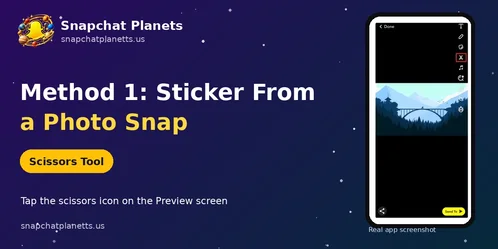
Send the Snap and the sticker still stays yours. It is already sitting in your sticker drawer for tomorrow and for next week. Want neat edges like the pros? Draw slow and stay close to the shape. That is the whole secret of a perfect sticker. And if you want the whole picture as one big sticker, trace around the full photo instead of one corner of it.
Let Snapchat Find the Subject Itself
Too lazy to draw? Good news. On most clear photos, Snapchat finds the main person or object by itself and offers you the cutout on a plate. One tap and the sticker is done. This is also the real answer to how to make a sticker on snapchat without screenshotting. Screenshots are for other apps. Here the cutout is built in.
Method 2: Make a Sticker From a Photo or Camera Roll
Your best sticker material is already on your phone. That saved photo of your friend, your pet, your product, your holiday. When people ask how to make a sticker on snapchat from a saved photo, this is the method they are looking for, and it turns any image into a sticker in under a minute.
- Open any chat and tap the sticker icon in the chat bar.
- Tap New Sticker and pick a photo from your phone.
- Cut out the part you want, then tap Save Sticker.
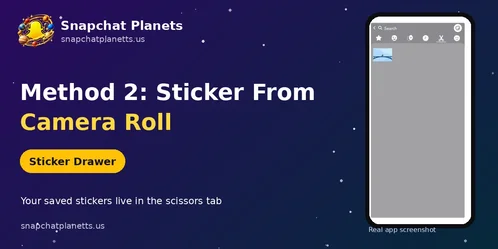
Done. You just learned how to make and save a sticker in one flow, because the drawer keeps it for you. This is also the answer to how to save a sticker on snap. You never press save and pray. The scissors tab is your proof.
The Same Sticker From Memories
There is a back door to the same sticker, and many people find it faster. Open Memories from the cards icon beside the shutter button, go to your Camera Roll, and open the photo. Tap the three dot menu, tap the Scissors icon, and trace the part you want, or tap the subject when auto detect finds it first. Same sticker, same drawer.
Method 3: Make a Sticker From a Spotlight Video
Spotlight is a gold mine of sticker faces. A funny reaction, a famous move, a perfect pause. If a frame makes you smile, steal it as a sticker.
- Open the Spotlight video and pause it on the frame you want.
- Tap Create Sticker, the scissors button under the pause button.
- Outline the part you want with your finger.
- Tap Save Sticker.
The sticker comes out as a still picture, sharp and ready. It will not move, even though it was born in a video. For a sticker that actually moves, the next method is yours.
Method 4: Make an Animated Sticker From a Video
Still stickers are fine. Moving stickers get the replies. An animated sticker is a tiny piece of your video that plays again and again, a bit like a gif, and people also call it a video sticker or a live sticker. Here is how to build one from a video in your Memories or Camera Roll.
- Open the sticker drawer and tap New Sticker.
- Pick a video instead of a photo.
- Choose up to 5 seconds of the video and trim it.
- Use the crop tool or draw around the part you want to keep.
- Tap the checkmark, then swipe to pick the normal version or the background removed version.
- Tap Save Sticker.
The Snapchat+ Catch
Now the honest part that most guides hide from you. Animated stickers from video are a Snapchat+ feature. No subscription? The app will walk you straight to the Snapchat+ page the moment you pick a video. Do not let that stop you. The first three methods in this guide are free for every single user.
No Snapchat+? Make a Still Sticker From One Frame
No Snapchat+? You still win. Pause your video on the one frame that says it all, tap the video, and cut a normal still sticker from it. It will not dance, but it costs zero and saves in the same drawer.
Which Method Should You Use?
| Method | Sticker source | Moves? | Cost |
|---|---|---|---|
| Photo Snap cutout | A photo you take now | No | Free |
| Photo or Camera Roll | A saved photo | No | Free |
| Spotlight | A Spotlight video frame | No | Free |
| Animated video sticker | Your own video, up to 5 seconds | Yes | Snapchat+ |
How to Make a Face Sticker on Snapchat
Faces get the biggest reactions, so the face sticker is the king of custom stickers. Pick a clear photo in good light, open it with Method 1 or Method 2, and trace the head slowly. One face in the frame gives you the cleanest cut of all.
Make one of your own face for your daily mood, or cut out someone’s face from a photo you already own, like the legendary funny picture of your best friend. Only use photos you have the right to use, and keep the joke kind. A clean face sticker lands at any size, on any Snap, every time. The friends you chat with the most also sit in a planet order on your profile, and our best friends list planets guide shows what each planet says about that friendship.
Make a Sticker Move With Your Video
A sticker glued in one corner is fine. A sticker that rides on your dog’s head while he runs across the room is comedy gold. Pin your sticker to a person or object and it follows the action for you. This is how to make a sticker follow something and stay locked on.
- Record a video Snap.
- Tap the sticker icon and pick your sticker.
- Place the sticker on the person or object and press and hold it.
- The video plays and Snapchat tracks the movement, so the sticker follows the object.
Play it back before you send. If the sticker slides off, pin it again on a frame where the object stands out clear and bright. Two tries and it tracks like a pro.
How to Use the Stickers You Made
Learning how to make a sticker on snapchat is only half the job. A sticker sitting in the drawer helps nobody. Open the scissors tab on any Snap, tap your sticker, and drop it where it hits hardest. Drag it around, pinch it big or small, and spin it with two fingers until it sits just right. That is how you add stickers on Snapchat Snaps, and the same drawer is waiting inside your chats.
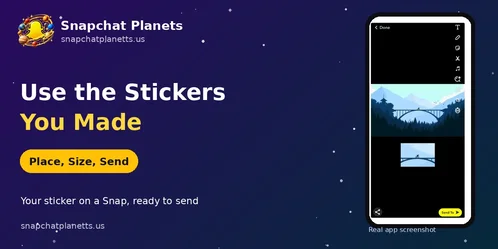
In a chat, tap the sticker icon, pick your sticker, and fire it. Now you know how to send stickers on snapchat in any conversation too. One honest warning before you spam your friends: in chat, a custom sticker travels as a plain image, so it can look a little soft. On a Snap it stays sharp and proud.
Add Text to Your Sticker
Words make a good sticker great. Drop your sticker on a Snap, tap the text tool, and write the line that makes it funny. Or cut your sticker from a photo that already carries bold words, like a sign or a printed shirt. The words become part of the sticker, so choose words that shout.
How to Delete a Sticker You Made
Your drawer, your rules. You can delete any sticker you made, at any time, in five seconds. Snapchat’s built in stickers cannot be removed, but yours answer to you.
- Open the sticker drawer and go to the scissors tab.
- Press and hold the sticker you want to remove.
- Tap Delete.
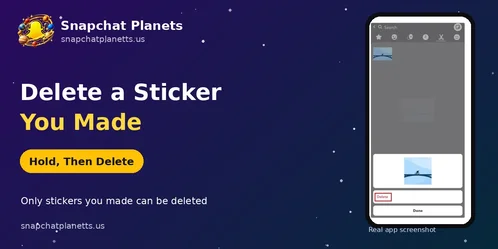
Gone for good. Changed your mind next month? Make it again from the same photo in under a minute. Nothing is lost but a little drawer space.
Sticker Problems? Fix These First
Blurry sticker? Blame the photo, not the tool. A cutout can only be as clear as the picture it came from, and a small, dark, or shaky photo gives you a soft sticker that falls apart when you stretch it big. Shoot or pick a bigger, brighter photo, make the sticker again, and keep it at a size it can handle.
Sticker missing? Do not panic and do not remake it yet. Open the drawer and check the scissors tab first. Most of the time your sticker is sitting right there, hiding in the row. Still stuck? Close the app, open it fresh, and look again.
Background stuck to your sticker? Your outline rushed it. Draw again, slower this time, and hug the edge of the object like you are tracing it for money. A plain wall behind your subject helps Snapchat cut like a knife. If the app still fights you after all three fixes, clear the cache and go again. Our guide on how to clear cache on snapchat shows the safe way, step by step.
Frequently Asked Question
Can I make a sticker from a Snap someone sent me?
No, and Snapchat built it that way. A Snap inside a chat has no scissors button, so there is no direct cut. If the same photo lives in your own gallery, make your sticker from there. And forget the screenshot idea. Snapchat tells the sender the moment you take one.
Does Snapchat tell the person if I make a sticker from their Snap?
No alert exists for making a sticker. Cut stickers from your own photos all day and nobody hears a word about it. The one thing that does alert people is a screenshot. Screenshot a Snap or a chat and the other person sees it at once.
Is there a limit to how many stickers I can make or save?
Snapchat has never published a hard number, so there is no official wall to hit. In daily use, the drawer holds a large crowd of stickers without a fight. If yours ever feels slow or stuffed, delete the dead ones and it breathes again.
Can I save my custom sticker to my camera roll?
There is no magic button that drops a custom sticker into your camera roll as a file. Your stickers live in the drawer inside Snapchat, and that is their home. Want one outside the app? Put it on a Snap, save the Snap to Memories, and export it from there.
How do I get my stickers back if they disappear?
First check the account, because custom stickers belong to your account and not to your phone. Sign in with the same account and open the scissors tab in the drawer. If they are still gone after an app update or a phone change, Snapchat cannot bring them back, and the honest fix is to remake them from your photos.
Conclusion
Your photos are full of stickers waiting to happen. The dog photo sitting in your camera roll, the funny face your friend made last week, the best frame of that Spotlight video. Now you know how to turn every one of them into a sticker you can use again and again.
Start simple. Take one good photo, cut it out with the Scissors tool, and save your first sticker today. Then try a face sticker, make one move with Snapchat+, and pin a sticker to a moving video when you feel ready. The more stickers you build, the more your Snaps feel like yours and no one else’s. That is the real power of a custom sticker. It is your picture, your joke, and your style, ready in two taps whenever you need it.
One Response