
Snapchat makes it easy to share photos, videos, and messages with friends. But sometimes, you may want to stop someone from contacting you. Maybe a person keeps sending unwanted messages, viewing your Stories, or making you feel uncomfortable. In that case, blocking can help protect your privacy. For a clear guide to Snapchat Planets and other Snapchat features, explore our homepage.
If you are searching for how to block someone on Snapchat, you can do it in a few simple steps. You do not need to delete your account or change your username. Snapchat also lets you block people who are not on your Friends List.
You may also want to know whether someone has blocked you, what happens to old messages, or whether the other person gets a notification. This guide explains the process, the signs to look for, and the privacy options you can use.
How to Block Someone on Snapchat
You can block someone from the Chat screen or their profile. The labels may look a little different depending on your app version, but the main steps are similar on Android and iPhone.
People also search for how to block people on Snapchat, how do you block someone on Snapchat, or how to block a person on Snapchat. These phrases describe the same basic process: open the person’s profile or chat, choose Manage Friendship when available, and select Block.
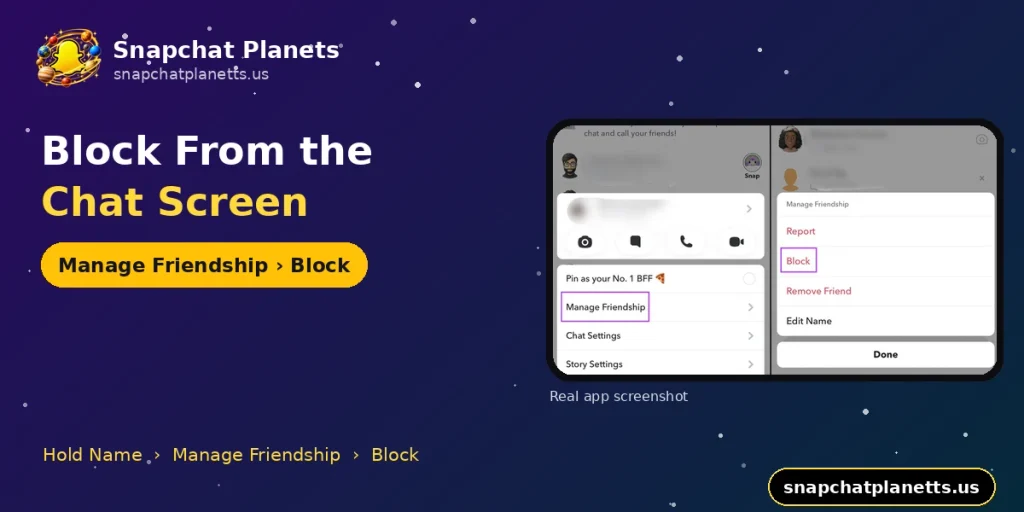
Method 1: Block Someone From the Chat Screen
This method works when the person is already in your Chats or Friends List:
- Open the Snapchat app on your phone.
- Swipe right from the Camera screen to open the Chat screen.
- Find the person you want to block.
- Press and hold their name or chat.
- Tap Manage Friendship.
- Choose Block and confirm if Snapchat asks you.
After blocking, that account cannot contact you through normal private Snaps and Chats. If you do not see Manage Friendship, open the person’s profile and check the menu there.
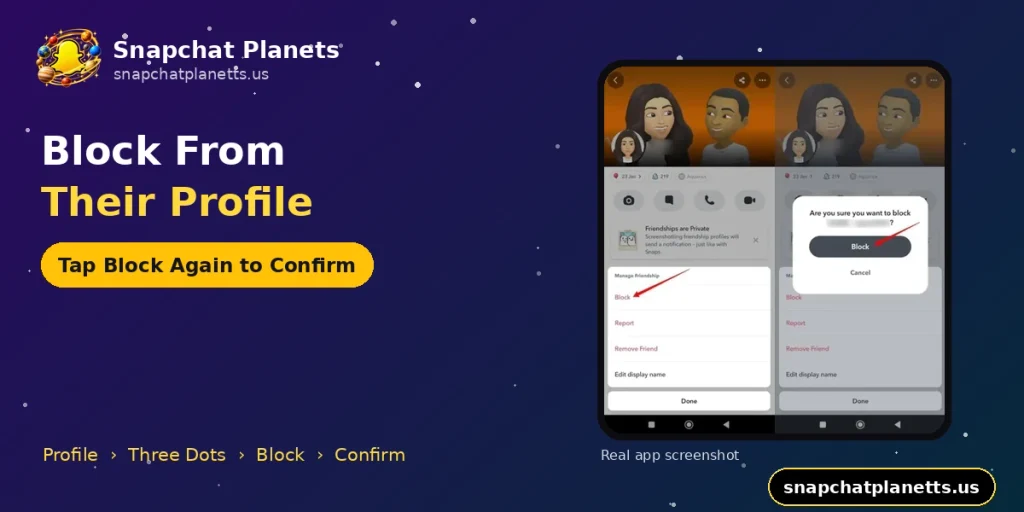
Method 2: Block Someone From Their Profile
- Open Snapchat and go to the Chat screen.
- Tap the person’s name to open the conversation.
- Tap their profile icon or Bitmoji at the top.
- Open the three-dot menu.
- Choose Manage Friendship, then tap Block.
- Confirm your choice.
This is useful when you already have the conversation open and do not want to search through your Friends List.
Method 3: How to Block Someone on Snapchat Who Is Not Your Friend
You do not have to add someone as a friend before blocking them. This can help if a stranger sends unwanted messages or keeps trying to contact you.
If you are looking for how to block on Snapchat when the person is not your friend, use username search and open the correct profile before selecting Block.
- Open Snapchat and tap the Search icon.
- Enter the person’s exact username or display name.
- Open the correct profile.
- Tap the three-dot menu.
- Select Block and confirm.
Check the username before confirming. Different accounts can have similar display names, and you do not want to block the wrong person.
Method 4: Block a Public Profile on Snapchat
Public Profiles have a separate profile view. Open the Public Profile you want to block, tap the three-dot menu, choose Block, and confirm. Make sure you are viewing the correct profile before taking this step.
How to Block Someone on Snapchat Without Them Knowing
Many people search for how to block someone on Snapchat without them knowing because they do not want to start an argument. Snapchat does not send a direct notification when you block someone. The person will not receive an alert saying that you blocked their account.
A related search is how to block someone on Snapchat that has you blocked. If the person has already blocked your account, you may not be able to open their profile or reach the Block option, so Snapchat may not provide a direct way to block that same account from the unavailable profile.
Still, they may notice changes later. They may no longer be able to send you private Snaps or Chats, find your profile in the usual way, or see your Snap Map location. A previous conversation may also stop appearing as it did before.
There is no way to guarantee that the person will never work it out. The safest answer is that Snapchat does not notify them, but changes in the app may make them suspect that they have been blocked.
How to Know If Someone Blocked You on Snapchat
Snapchat does not show a list of people who have blocked you, and it does not send a notification when someone blocks your account. However, a few signs can help you understand what may have happened.
You may also see searches such as how to tell if someone has blocked you on Snapchat, how to know if someone blocked me on Snapchat, and how to see if someone blocked you on Snapchat. The checks below can help you look for clues, but none of them is a guaranteed confirmation.
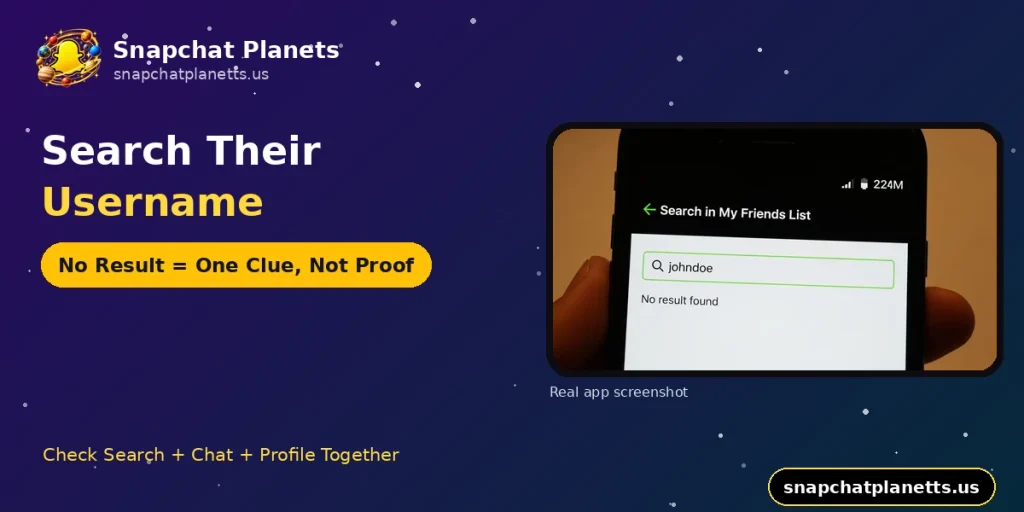
1. Search for Their Snapchat Username
Open Snapchat, tap Search, and enter the person’s exact username. If the account does not appear, they may have blocked you. But this is not proof: the person may have deleted or deactivated the account, changed their username, or you may have entered it incorrectly.
2. Check Your Previous Chat
Look at your Chat screen and see whether the conversation is still available. If it has disappeared, blocking is one possible reason. A missing conversation alone does not confirm a block because account and chat changes can also affect what you see.
3. Try to Open Their Profile
If you can reach their profile from an old message or another place in the app, check whether the profile opens and whether the usual friendship options are available. If you cannot access it, that may be another clue, but it is not conclusive by itself.
4. Ask a Mutual Friend to Check
A mutual friend may be able to search for the account from their own Snapchat account. If they can find it while you cannot, that may suggest the person has blocked you. Treat this as a clue, not a guaranteed test, because privacy and account changes can affect visibility.
5. Do Not Rely Only on a Missing Snap Score
A missing Snap Score does not automatically mean someone blocked you. Score visibility can depend on your friendship status and other account conditions. Check more than one sign instead of making a decision based on the score alone.
The most careful approach is to compare the username search, old conversation, and profile access. Snapchat does not provide a single check that confirms a block with complete certainty.
Difference Between Blocking and Removing Someone on Snapchat
Blocking and removing a friend are different. Removing someone takes them off your Friends List. Blocking goes further by stopping that account from contacting you through normal private Snaps and Chats.
What Happens When You Remove a Friend?
- The person is removed from your Friends List.
- They may still be able to see content you share publicly.
- Whether they can contact you may depend on your Contact Me privacy settings.
- You can add them again later if you choose.
What Happens When You Block a Friend?
- They cannot send you normal private Snaps or Chats from that account.
- They lose access to private friendship-related content.
- Your Snap Map location is hidden from that blocked account.
- Snapchat does not send them a direct block notification.
Blocking does not make every piece of public content invisible. Blocked users may still be able to view public content such as Public Stories and Spotlight.
Blocking vs. Removing: Quick Comparison
| Feature | Remove Friend | Block |
| Removes them from Friends List | Yes | Yes |
| Stops normal private Snaps and Chats | Depends on privacy settings | Yes |
| Public content visibility | May remain visible | May remain visible |
| Hides Snap Map location from that account | Depends on location settings | Yes |
| Direct block notification | No | No |
| Can reconnect later | Add again | Unblock first |
What Happens When You Block Someone on Snapchat?
Blocking changes how the two accounts can interact, but it does not erase every trace of past activity or hide all public content.
Want to understand another Snapchat feature? Read our Snapchat Best Friends Planets to learn how the Friend Solar System ranks close friends.
This section answers the related question what happens when you block someone on Snapchat: direct contact is restricted, private friendship access changes, and shared groups or public content can work differently.
They Cannot Send You Private Snaps or Chats
A blocked account cannot send you normal private Snaps or Chat messages. This is the main reason people use the block feature when they want to stop unwanted contact.
Your Private Stories and Friendship Details
Blocking cuts off access to private friendship-related content. However, public Stories and Spotlight content may still be visible, so do not assume that blocking hides everything you post.
Your Snap Map Location
Your location is no longer shared with the account you blocked. If location privacy is important to you, review your Snap Map settings and consider using Ghost Mode when you do not want to share your location with friends.
What Happens to Old Chats and Saved Messages?
The old conversation may no longer appear in the same way after you block someone. Do not assume that blocking permanently deletes every saved message or that all messages will return if you unblock the person. If a message matters, consider what you need to keep before blocking and remember that the other person may already have saved or captured content.
What About Shared Group Chats?
Blocking someone does not automatically remove both of you from every shared Group Chat. You may still see messages that the blocked person posts in a group you both belong to. Blocking is mainly a limit on direct contact, not a way to erase a shared group conversation.
Can They See Your Public Stories or Spotlight?
Public content works differently from private friend content. A blocked person may still be able to view public Stories or Spotlight posts. If you do not want a particular audience to see a Story, review its audience settings rather than relying only on blocking.
How to Find and Unblock Someone on Snapchat
If you blocked someone by mistake or want to reconnect, you can unblock them from Snapchat settings. Unblocking does not automatically make the person your friend again.
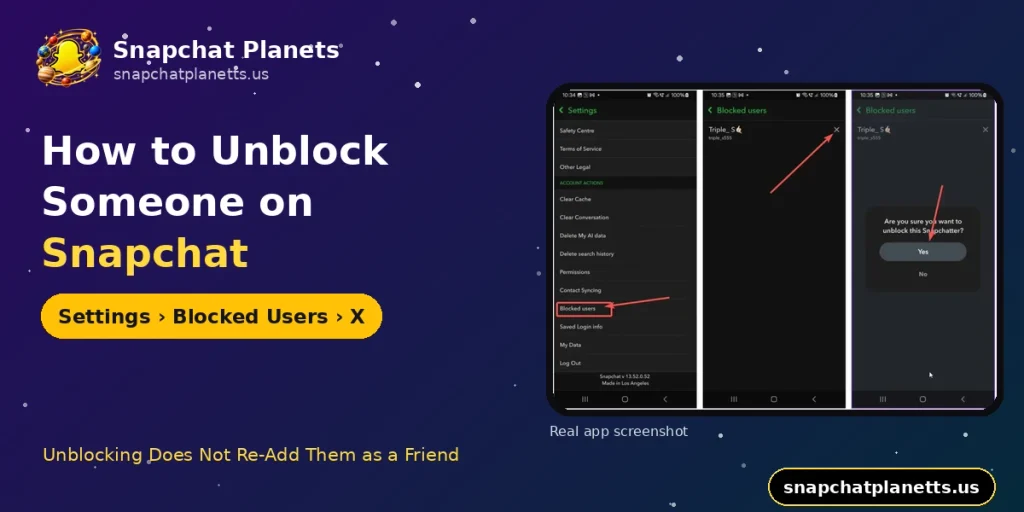
If you searched how to unblock someone on Snapchat or how can I unblock someone from Snapchat, the steps are the same: open your Blocked Users list in Settings and use the Unblock option beside the account.
How to Find Your Blocked List
- Open Snapchat and tap your profile icon.
- Tap the Settings gear.
- Scroll to the Account Actions or Privacy Controls area.
- Find the Blocked Users option. The exact label or location may vary by app version.
- Open the list to see accounts you have blocked.
How to Unblock Someone
- Open your Blocked Users list.
- Find the account you want to unblock.
- Tap the X or Unblock option beside the username.
- Confirm if Snapchat asks you.
To find a specific account, search your Blocked Users list if your app version provides a search field, or scroll through the list. This also answers the common query how to find someone you blocked on Snapchat.
After unblocking, the person may be able to find or contact you again depending on your privacy settings. If you want to be friends again, you may need to send a new friend request.
Can You Block Someone Again After Unblocking Them?
Yes. If you unblock someone and later decide you do not want contact, you can block the account again. Open the profile or chat and use the Block option.
Can You Block Someone Who Has Already Blocked You?
This can be difficult because blocking may prevent you from finding or opening the other person’s profile from your account. If their profile is not accessible, Snapchat may not give you a direct way to block them from that screen.
Avoid using another person’s account to get around someone’s privacy choice. If you are receiving unwanted contact through another account, you can block that account too and report it if it breaks Snapchat’s rules.
Blocking vs. Removing vs. Reporting on Snapchat
These options solve different problems. Choose the one that matches what is happening:
- Remove Friend: Use this when you no longer want someone on your Friends List but do not need to fully block their account.
- Block: Use this when you want to stop an account from contacting you through normal private Snaps and Chats.
- Report: Use this when an account, message, or piece of content appears to break Snapchat’s rules or involves harassment, threats, or abuse.
Reporting and blocking are not the same. Blocking limits contact with your account, while reporting alerts Snapchat to content or behavior that may need review. You can use both when appropriate.
Protect Your Snapchat Privacy Without Blocking
Blocking is useful, but it is not the only way to control who can reach you or see your content. Snapchat has privacy settings that let you manage your audience.
You can also browse our Snapchat Guide for more help with Snapchat features and settings.
Change Who Can Contact You
Open Settings and review the Contact Me option. Choose the available setting that matches who you want to hear from. The options can change over time, so check the choices shown in your app.
Control Who Can View Your Story
Review your Story privacy settings before posting. If you want to share a Story with a smaller audience, use the available custom or friends-only audience options instead of posting it publicly.
Use Ghost Mode on Snap Map
Ghost Mode hides your location from other Snapchat users on Snap Map. It is a useful choice when you do not want friends to see where you are. You can turn it on from Snap Map settings.
Review Quick Add and Other Privacy Options
If you do not want your account suggested to other users, review the privacy and visibility controls available in Snapchat settings. These options can help reduce unwanted contact, although they do not replace blocking when you need to stop a specific account.
Why Can’t I Block or Unblock Someone on Snapchat?
Sometimes the Block or Unblock option may not appear, or the app may not respond. Try these checks before assuming something is wrong with your account.
For how to block someone on Snapchat PC, first check which features are available in Snapchat for Web on your device. The mobile app provides the clearest, commonly documented blocking steps in this guide; do not assume every mobile privacy control is available on desktop.
The Block Option Is Missing
Open the person’s profile and check the three-dot menu or Manage Friendship section. Snapchat may change where options appear after an app update. Make sure you are viewing the correct account.
You Cannot Find the Person
Check the spelling of the username. Display names are not always unique, so use the exact username when possible. If the account still does not appear, it may have been deleted, deactivated, renamed, or may have blocked you.
The Unblock Option Does Not Work
Close and reopen Snapchat, check your internet connection, and make sure you are using the latest version of the app. Then return to the Blocked Users list and try again.
Snapchat Keeps Showing an Error
If the problem continues, wait a little and try again. You can also check Snapchat Support for current account or app troubleshooting steps. Never give your password to a third-party website that claims it can manage your blocked list.
Frequently Asked Questions
Can a blocked person add me to a new Snapchat Group Chat?
Snapchat blocking limits direct contact and prevents the blocked account from adding you to new groups. If you are already in a shared Group Chat, you may still see messages from that person there.
Can I search for someone’s username in my Blocked Users list?
You can open the Blocked Users list in Snapchat settings to review accounts you have blocked. The list layout and available search options may vary by app version, so scroll through the list if you do not see a search field.
Does blocking someone delete screenshots or screen recordings they already saved?
No. Blocking cannot erase screenshots, screen recordings, or copies that someone already saved outside Snapchat. Think carefully before sharing private content, because another person may capture it.
Can someone contact me through another Snapchat account after I block them?
Blocking applies to the account you selected. A person could try to contact you from another account, so block or report any other account that sends unwanted messages and review your Contact Me settings.
Can I block someone again after unblocking them?
Yes. You can block the same account again if you decide you no longer want contact. Find the person’s profile or chat and use the Block option again.
Conclusion
Knowing how to block someone on Snapchat can help you manage unwanted messages and protect your privacy. You can block a friend from the Chat screen, block someone through their profile, or block an account that is not on your Friends List.
If you think someone has blocked you, check a few signs instead of relying on one clue. A missing username, chat, or Snap Score does not prove a block on its own. Also remember that blocking does not hide every public post or remove screenshots someone has already saved.
Use blocking when you need to stop direct contact, adjust your privacy settings when you want more control over your audience, and report accounts that break Snapchat’s rules. These steps can help you use Snapchat with more confidence and control.
One Response